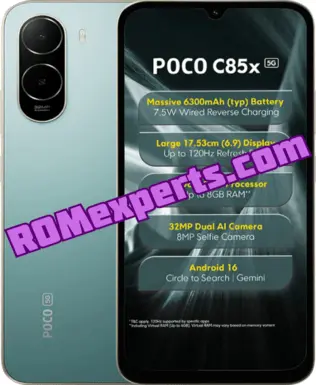
Got a problem with POCO C85x 5G? This official HyperOS 3 flash file revives your phone when it’s frozen on logo, locked by FRP, or misbehaving after a failed update. Works on Unisoc T8300 (6 nm) models. You’ll need proper flashing tools – if you’re not comfortable doing it yourself, we provide expert flashing support. Ideal for fixing forgotten patterns, endless boot loops, or system crashes. Always flash with certified files like this to prevent problems. Includes easy-to-follow instructions so you can safely unbrick your device at home.
Table of Contents
📌 Why You Might Need to Flash Your POCO C85x 5G
Flashing your device isn’t just for advanced users. It can help in several everyday issues, such as:
- Forgot your screen lock or pattern
- Phone is stuck in boot loop or shows only the Xiaomi logo
- Locked out due to FRP (Google account)
- Phone is bricked after trying to root or install custom ROMs
- Facing lags, bugs, or software crashes
- Want to manually update or downgrade firmware
📦 Download POCO C85x 5G Flash File
🛑 Note: The firmware is free to use just download and use. To receive Flash service (paid), WhatsApp me at +91 74390 32728
📱 POCO C85x 5G Specifications (For Reference)
If you’re unsure about your phone model, here’s a quick overview:
- Battery: 6300mAh non-removable with 15W fast charging
- Processor: Unisoc T8300 (6 nm)
- RAM & Storage: 4GB RAM | 64GB or 128GB storage
- Expandable Storage: Yes microSD slot
- Operating System: HyperOS 3 based on Android 16
🔧 How to Flash POCO C85x 5G – Step-by-Step
Flashing is simple when you follow each step carefully:
- Extract the firmware using WinRAR or 7-Zip.
- Install Unisoc USB Drivers ( SPD).
- Launch Tool and select file from file folder.
- Power off the phone.
- Press and hold Volume Up + Volume Down and connect to PC.
- Ensure the device appears as a SPRD U2S Diag port in Device Manager.
- The tool will detect the phone and start flashing.
- Wait until it shows Download Success.
- Reboot the device – it should now be working fine.
❗ Facing Errors While Flashing?
Getting errors like tool not opening, port not showing, or flash failing? I offer remote support to fix these issues. Contact me here and I’ll guide you step by step.
⚠️ Disclaimer
Flashing your device will erase all data and may void your warranty. Please back up everything important before proceeding. This guide is for users who have basic flashing experience. We’re not responsible for any damage or data loss. Proceed at your own risk.
🔗 Stay Updated & Connected
Follow us for latest firmware, flashing tools, drivers, and tips: